Free resources Obsidian plugin
Kanban to Bases
The plugin moves your Kanban plugin boards to the native Kanban view of Obsidian 1.14. Your original board stays as it is.
- Free
- Obsidian 1.14 or later
Northwind website.md
## To do- [ ] Homepage wireframes @{2026-10-14} #client- [ ] Collect product photos## Doing- [ ] Logo refinements, round 3 @{2026-10-12}## Done- [x] Kickoff call #clientNorthwind website.base
To do 2
Doing 1
Done 1
In three steps
-
1
Check the preview
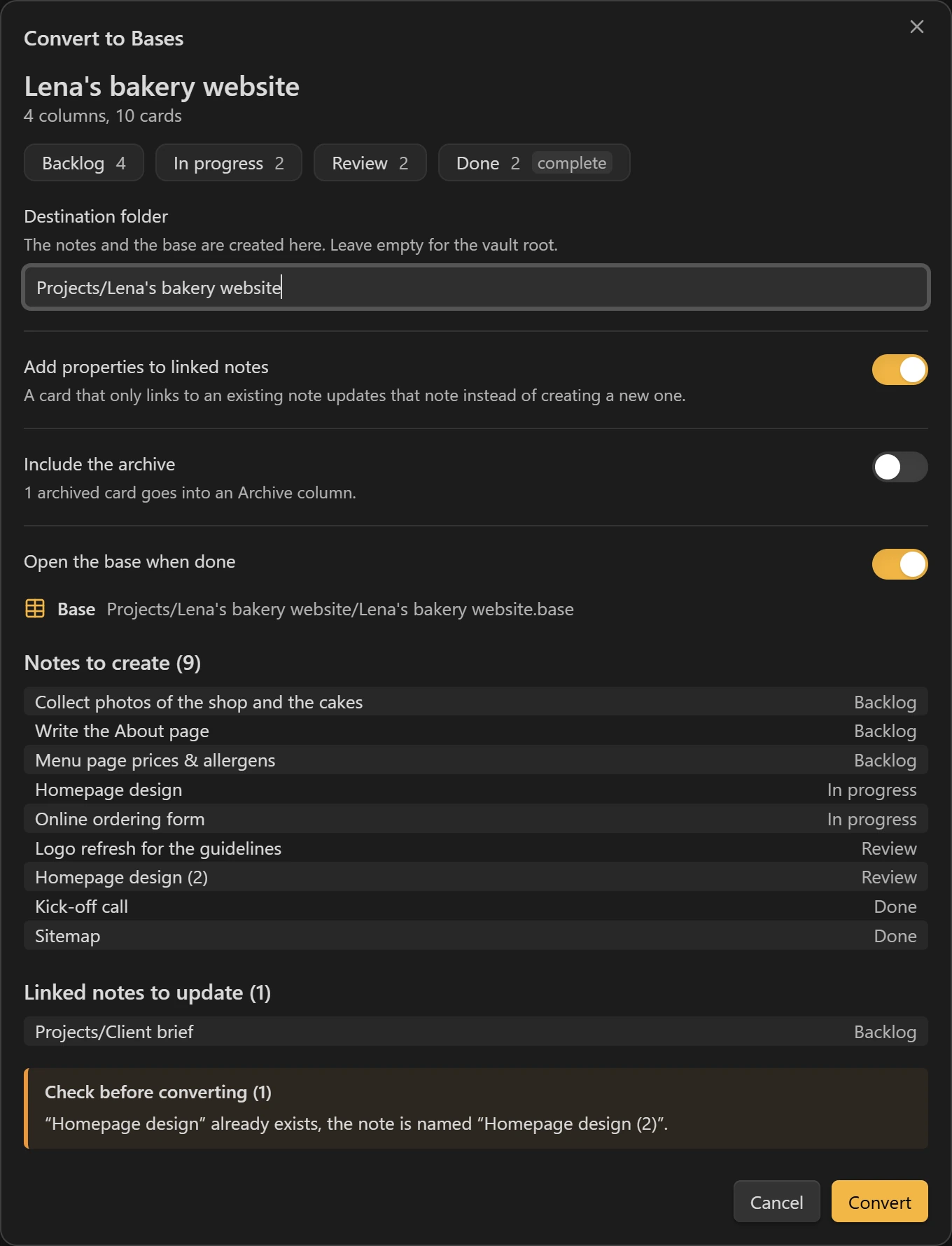
Open your board and click the “Convert to Bases” button at the top right. The plugin shows the columns, the notes it will create and the folder before it writes anything.
-
2
Find your board again
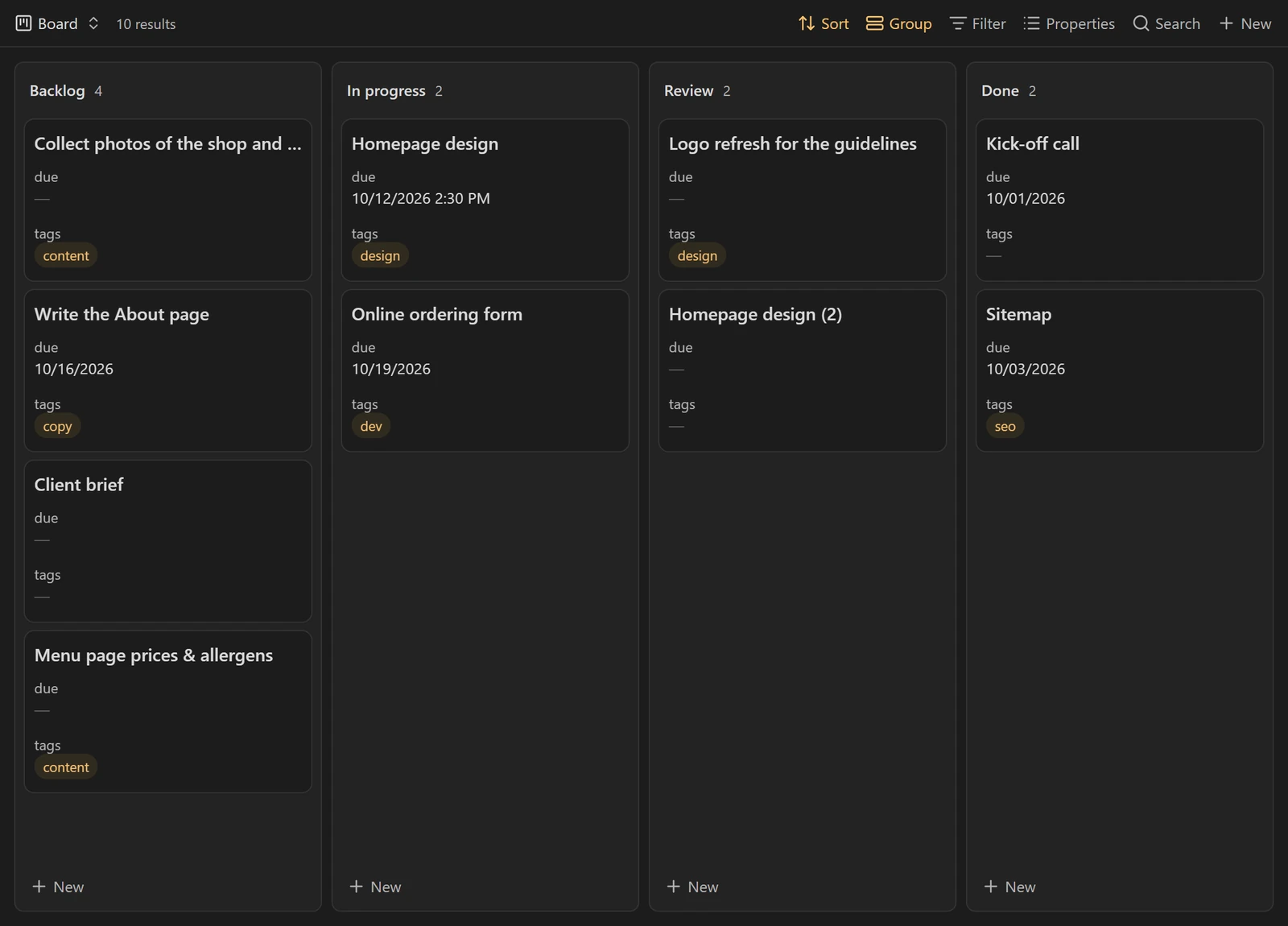
Each card becomes a note, and a base shows it in the native Kanban view, with the same columns in the same order.
-
3
Undo if you change your mind
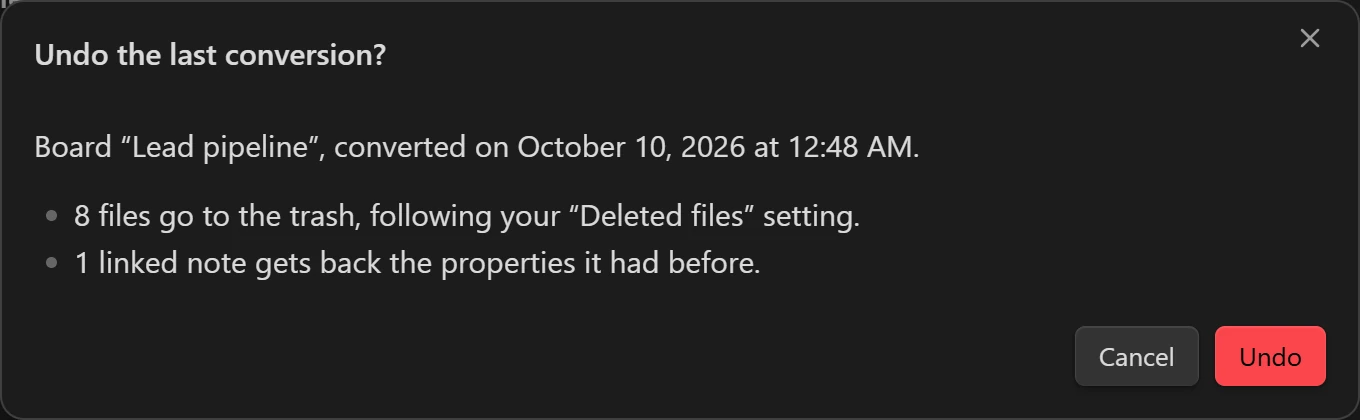
The command “Undo last Kanban conversion” moves the created notes to the trash and gives linked notes back their old properties.
Install the plugin
The plugin is not in Obsidian’s directory yet. Until then, you install it by hand:
- Download the archive and unzip it: you get a kanban-to-bases folder.
- Copy that folder into the .obsidian/plugins subfolder of your vault.
- In Obsidian’s settings, open Community plugins, then enable Kanban to Bases.
Guide and questions
What each card becomes
| On the board | In the note |
|---|---|
| The column | status |
| Its place in the column (1, 2, 3…) | position |
| The date @{2026-10-12} and time @@{14:30} | due |
| A checked box, or a column marked complete | done |
| #tags | tags |
| The board name | board |
| key:: value fields | a property with the same name |
| The first line | the note name |
| The following lines | the note content |
A card that only contains a link to an existing note updates that note (status, position and board) instead of creating a new one. The preview shows the old value before replacing it.
Preview options
Before converting, you choose the destination folder: by default, a folder named after the board, next to it. Three switches decide whether linked notes are updated, whether archived cards are converted and whether the base opens at the end.
Plugin settings
In the plugin settings, you can rename the six properties, choose the column for cards placed above the first column (“Inbox” by default) and set the width of the Kanban view columns (260 pixels by default).
Undoing a conversion
The command “Undo last Kanban conversion” moves the created notes and base to the trash, following your deleted files setting, and gives linked notes back their old properties. A property you changed since the conversion stays as it is. Only the last conversion can be undone, even after restarting Obsidian.
Good to know
In the Kanban view, dragging a card to another column changes its status. Moving it up or down within its column does not change position, and the order follows that property. A note with a new status value stays hidden until you add its column to the view.
Why convert?
The Kanban plugin has not had a new release since May 2024. Obsidian 1.14 shows Kanban boards without a plugin, from the properties of your notes. Your cards become notes, which you can sort, filter and link like any other.
Do I need Brievora?
No, the plugin works in any vault. It comes from the Brievora team.
The plugin comes from the Brievora team, who make an Obsidian vault for the whole client project. See Brievora